
Install and activate your CUTTER SOFT licence
You have bought a licence: no trial key here. Download the software, activate your key and import your session.
Download and install CUTTER SOFT
Enter your details and your licence email: the download starts and the next page guides you. Our team is informed.
Your details
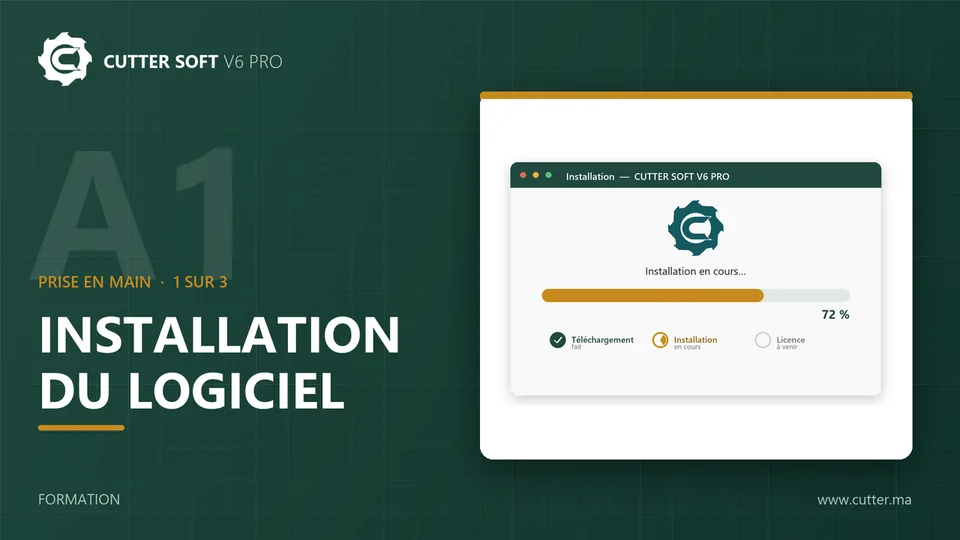
Double-click the downloaded file, then follow the wizard: language, terms of use, installation folder, Finish. By installing the software, you accept its terms of use.
System requirements
- System
- Windows 10 and 11
- Disk space
- At least 5 GB free 500 MB for the software, the rest for your databases
- Internet
- At activation and each time it starts
- Languages
- French, English and Spanish
You choose the interface language during installation. CUTTER SOFT is Windows software: there is no Mac or mobile version.
Already installed?
Activate your licence
On first launch, the License Activation window opens. Keep your licence email and your key at hand.
- 1
Enter your licence email
In the first field, the email address on your licence: exactly that one, not another mailbox. - 2
Enter your key
In the second field, your key in the format XXXXX-XXXXX-XXXXX-XXXXX-XXXXX: capitals and hyphens are added for you. - 3
Activate
Click Activate: the message “License activated successfully!” confirms the activation.
To check: user button › License Details. The status must be Active, without the TRIAL badge.
Do not click Try for Free
Received or activated a trial key by mistake?
Not activated yet: ignore the trial email and activate your key with the 3 steps.
Already activated: click the user button (top right), then Deactivate this Machine then Yes. Then choose Activate a License and enter your licence email and your key. Your projects are kept.
Trial ended: the License Activation window opens by itself at launch.
Common error messages
“Activation failed. Please check your credentials.”
The email address you entered is not the one on your licence. Enter exactly the address on your licence, with your key.
“A license is already active. Deactivate it first.”
Another licence, often a trial key, is active on this computer: user button, Deactivate this Machine then Yes, then Activate a License.
“Maximum number of machines reached for this license.”
All the workstations of your licence are in use. On the old PC, choose Deactivate this Machine to free its place, or ask our support for help.
“Invalid license.”
The key is not recognised: copy it again with its hyphens. If the message stays, write to our support.
“Unable to contact the server”
Activation needs the Internet. Check the connection, then allow CUTTER SOFT in your network’s firewall or proxy.
Import your session
Your session holds your catalogue, your ranges and your prices. Import your session: Sessions then Import then Import ZIP file, then double-click its card (or right-click › Activate this session) to work in it. The video shows every step.
You do not have it? Contact the technical team.
Several workstations and changing PC
-
One key per workstation
Does your licence cover several workstations? You receive one key for each (Administrator, Technician, Operator), with its own email address. On each PC, activate that workstation’s key with its email.
-
Changing PC
On the old PC, back up your sessions, then user button › Deactivate this Machine. On the new one, install CUTTER SOFT and activate the same key with the same email. A PC that is simply reinstalled keeps its place.
-
Internet required
The licence is checked online, at activation and each time the software starts. Without a connection, CUTTER SOFT can still open a few times (usually 5), then waits for the Internet to come back.
Customer questions
How do I update CUTTER SOFT?
Download the latest version and install it over the old one, without uninstalling: your data is kept. The update guide also explains how to update your session.
How do I move to a new PC?
On the old computer, back up your sessions (ZIP export or Google Drive), then deactivate the machine from the user menu.
On the new PC, install CUTTER SOFT, activate it with the same key and the same email address, then import your sessions.
If the old PC is out of order, an administrator frees its seat from the machine management screen, or our support team helps you. A computer that has simply been reinstalled is recognised and keeps its seat.
Where is my data, and how do I back it up?
Your sessions are stored on your PC. Export them as ZIP files, or set up automatic sync to your own Google Drive, from every 15 minutes to every 4 hours, in a dedicated backup folder.
Careful: uninstalling CUTTER SOFT deletes the local database. Always back up first.
How do I contact support?
First, ask CUTTER SOFT AI, inside the software. Then open a ticket from the Support menu, message us on WhatsApp (opens in a new tab) or send us an email. Everything is on the support page.
Need help?
Ask CUTTER SOFT AI first, in the software, then open a ticket or write to our team on WhatsApp.
First, CUTTER SOFT AI
In the software, ask the assistant your question: it answers about your setup and your projects, and explains each alert with its fix.
Left-hand menu, or the sparkles button at the top of the screen.
Then our team
-
A ticket from the software
Support menu, then “+ Create”. You follow the conversation in the software.