
Updating CUTTER SOFT V6 PRO and your session
The software installs over the previous version without losing your projects; your session updates from a ZIP file.
Software or session: two different updates
-
The software
This is the program installed on your PC. CUTTER SOFT releases new versions: you install them over your current one, from the download page.
-
The session
This is your database: catalogue, profile systems, prices and projects. It is updated from inside the software, using a session ZIP file.
How to tell a new version is available
When a newer version exists, a “new version available” bubble appears at the bottom right of CUTTER SOFT, showing your version and the latest one. It blocks nothing: you carry on working.
The bubble’s download button opens the download page in your browser: the software never downloads or installs anything by itself. The bubble comes back each time you open the software, then disappears once it is up to date.
What changes in each version is listed in the software’s notifications (the bell) and on the CUTTER SOFT what’s new page. Any other question? See our frequently asked questions.
Update the software in 4 steps
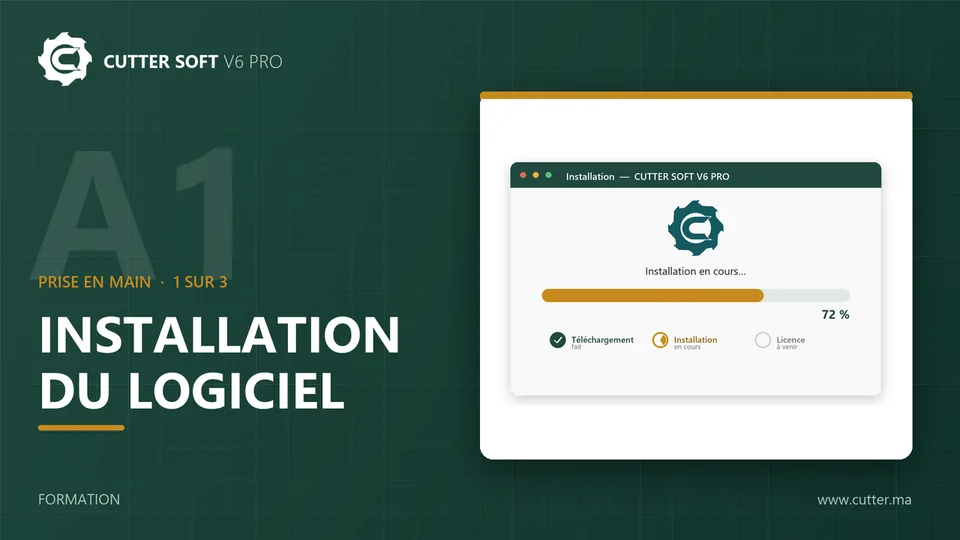
A few minutes is enough: your projects and sessions stay in place. The video shows the software being installed: the update uses the same wizard, over the old version.
- 1
Back up your sessions
Right-click each session card and export it: you get a ZIP file. If you use Google Drive, run a sync instead.Keep these backups until the update is finished. - 2
Download the latest version
With the “Download the update” button at the top of this page, or from the download page: a single file, always the latest version. - 3
Install over it
Close CUTTER SOFT, run the installer and keep the same installation folder as the first time: installing over the old version keeps your data, and your computer stays recognised by the licence.Do not uninstall the old version first: uninstalling deletes the local database. - 4
Restart and check
Restart CUTTER SOFT while connected to the internet: the bubble has gone, your software is up to date.
Update your session (technical configuration)
You have received a session ZIP file, with a new catalogue or new profile systems: here is how to apply it without losing your projects. Video A3 of the CUTTER SOFT video training shows every step.
- 1
Open the update
Right-click the session card, choose the technical configuration update, and select the ZIP file you received. - 2
Decide about your prices
The option to update the price lists as well is ticked by default: untick it to keep your own prices. - 3
Confirm
Before changing anything, the software exports a full backup and asks where to save it. You then confirm the update.This cannot be undone: keep that backup.
What is kept
- your company settings and contacts;
- your projects and connectors;
- the structural checks;
- your conversations with CUTTER SOFT AI.
What is replaced
- profile systems, series, products, variants and units;
- composites, colours and constants;
- catalogue images and documents, and standards;
- the assistant’s tips and methods, if the archive includes them;
- the price lists, if the option is ticked.
The ZIP file must come from a CUTTER SOFT version equal to or older than yours.
Mistakes to avoid
Uninstalling before reinstalling
Uninstalling deletes the local database. Always install the new version over the old one.
Updating a session without keeping the backup
A session update cannot be undone: save the backup the software offers, and keep it.
Trying to keep your prices with a different catalogue
The software refuses, on purpose. Tick the price list option instead, or import the archive as a new session.
Forgetting to recalculate after a session update
Reopen your projects and rerun the structural checks (calculation reports) if needed: they follow the new catalogue.
A problem after updating?
Ask CUTTER SOFT AI in the software first, then open a ticket or write to our team.
First, CUTTER SOFT AI
In the software, ask the assistant your question: it answers about your setup and your projects, and explains each alert with its fix.
Left-hand menu, or the sparkles button at the top of the screen.
Then our team
-
A ticket from the software
Support menu, then “+ Create”. You follow the conversation in the software.